Net Nanny (version 5.5, and higher)
Tech support for Net Nanny version 5.1 (or all versions older than 5.1) please contact support@contentwatch.com for uninstall assistance.
• Net Nanny came pre-installed on my Best Buy Toshiba L-635
• Sites are getting through that shouldn't!
• Run Time error When Installing Net Nanny
• "There is a Problem With Your ContentWatch Installation..."
• "Firefox is now configured for secure filtering." appears constantly
• I'm installing Net Nanny and the installation has frozen.
• Problems with seeing reports for AIM (AOL Instant Messenger)
• Countdown Clock After Installing or No Start Button After Installing
• I'm getting "Error #102" or "Missing or Corrupt File"
• "Setup files Are Corrupt" Message Appears When I Try to Install NetNanny.
• I'm having problems with Live One Care
• Cannot Send or Receive E-mail After Installing Net Nanny
• Why does the Net Nanny icon have an hour glass?
• I forgot my password
• Will Net Nanny 5.6 Work on my Windows 98 or Windows 2000 computer?
• What if I have Content Protect and not Net Nanny?
TIPS & TRICKS
• Make Net Nanny virtually invisible
• Add Net Nanny to your security software exception list
• Where is the User's Guide?
• Check on internet activity...remotely!
Net Nanny for Mac
Net Nanny For Mac is Now Available!
ContentCleanup version 2
• How do I recover deleted files once they have been deleted with ContentCleanup?
• I can't find my new ContentCleanup!
• Files that won't delete
Sunday, January 01, 2012
Tuesday, March 15, 2011
Net Nanny on Toshiba L-635
If you have recently purchased a Toshiba L-635 (gray & green with a wipe down keyboard) you may have noticed it comes pre-installed with the Net Nanny internet filter.
If you are being prompted by Net Nanny and you want to uninstall Net Nanny, you need to activate it to create an uninstall password.
If the set up prompt from Net Nanny does not appear, please contact Net Nanny support: support@contentwatch.com
(put the following in the subject: Activate Net Nanny on Toshiba L-635)
Remove Net Nanny, Uninstall Net Nanny, I hate Net Nanny, Toshiba, Toshiba L-635, Best Buy, GeekSquad, Geek Squad, Hotel
If you are being prompted by Net Nanny and you want to uninstall Net Nanny, you need to activate it to create an uninstall password.
To activate Net Nanny, reboot the computer and in a few moments a prompt from Net Nanny will appear: Net Nanny is ready for setup!
At this prompt enter the activation code: 8LSLADG2
If the set up prompt from Net Nanny does not appear, please contact Net Nanny support: support@contentwatch.com
(put the following in the subject: Activate Net Nanny on Toshiba L-635)
Remove Net Nanny, Uninstall Net Nanny, I hate Net Nanny, Toshiba, Toshiba L-635, Best Buy, GeekSquad, Geek Squad, Hotel

Wednesday, July 22, 2009
I'm installing Net Nanny and the installation has frozen.
1 - If your installation has frozen please cancel the install.
2 - Please restart your computer. When Windows starts turning on, repeatedly press F8 on your keyboard. When you see the text-only menu, select "Safe Mode with Networking."
3 - Open MyComputer\Tools\Folder Options\View, click the circle labeled "show hidden files and folders". Below the option you have just selected, uncheck the box labeled "hide file extensions". Click "Ok." (Windows Vista will require that the ALT key be pressed to show "Tools" in the Tool bar.)
4 - Open MyComputer\Local Disk C:\Program Files, delete the ContentWatch folder.
XP: Open MyComputer\Local Disk C:\Documents and Settings\All Users\Application Data delete the ContentWatch folder.
VISTA: Open MyComputer\Local Disk C:\Program Data, delete the ContentWatch folder.
5 - Reinstall while in SafeMode with Networking from www.netnanny.com/login. Log in, on the right side (Returning User) with your email address and password (use the Forgot Password prompt if you cannot remember your password.)
6 - The next page that comes up should have a green star labeled "Active" with a "Download" option beneath your registration number. Click on the "Download" button for the product you want to download & install. The installation will require the registration number on this web page.
NOTE:
-If you are using a highspeed internet connection, click the "Download" button, then click "Run" to begin the installation. If you are prompted to Save without an option to run, click Save.
-If you are using a dial-up internet connection, click the "Download" button, in the next prompt click "Save"; save your download to your desktop. This will help you avoid long downloads in the future.
Before reinstalling if you have a software firewall running make sure you disable your firewall, (you can turn the firewall on again after the install is finished.) This also applies to any spyware monitoring software. For instructions on disabling the most common firewalls please visit: http://www.netnanny.com/kb/126
If you do not know how to disable the firewall or spyware monitoring software please contact your IT department or the technical support for the firewall that is on your computer. If you do not know if you have a firewall on your computer please contact your computer manufacturer to find out.
2 - Please restart your computer. When Windows starts turning on, repeatedly press F8 on your keyboard. When you see the text-only menu, select "Safe Mode with Networking."
3 - Open MyComputer\Tools\Folder Options\View, click the circle labeled "show hidden files and folders". Below the option you have just selected, uncheck the box labeled "hide file extensions". Click "Ok." (Windows Vista will require that the ALT key be pressed to show "Tools" in the Tool bar.)
4 - Open MyComputer\Local Disk C:\Program Files, delete the ContentWatch folder.
XP: Open MyComputer\Local Disk C:\Documents and Settings\All Users\Application Data delete the ContentWatch folder.
VISTA: Open MyComputer\Local Disk C:\Program Data, delete the ContentWatch folder.
5 - Reinstall while in SafeMode with Networking from www.netnanny.com/login. Log in, on the right side (Returning User) with your email address and password (use the Forgot Password prompt if you cannot remember your password.)
6 - The next page that comes up should have a green star labeled "Active" with a "Download" option beneath your registration number. Click on the "Download" button for the product you want to download & install. The installation will require the registration number on this web page.
NOTE:
-If you are using a highspeed internet connection, click the "Download" button, then click "Run" to begin the installation. If you are prompted to Save without an option to run, click Save.
-If you are using a dial-up internet connection, click the "Download" button, in the next prompt click "Save"; save your download to your desktop. This will help you avoid long downloads in the future.
Before reinstalling if you have a software firewall running make sure you disable your firewall, (you can turn the firewall on again after the install is finished.) This also applies to any spyware monitoring software. For instructions on disabling the most common firewalls please visit: http://www.netnanny.com/kb/126
If you do not know how to disable the firewall or spyware monitoring software please contact your IT department or the technical support for the firewall that is on your computer. If you do not know if you have a firewall on your computer please contact your computer manufacturer to find out.
Wednesday, November 19, 2008
"Firefox is now configured for secure filtering." appears constantly
If you have seen "Firefox is now configured for secure filtering. Please restart Firefox in order to browse secure websites." more than once this means Net Nanny was unable to install a file into Firefox that allows Net Nanny to filter secure websites.
Please follow the below instructions to manually install the file.
1 - Open Firefox.
2 - Click Tools, Options.
3 - Click Advanced.
4 - Click Encryption.
5 - Click View Certificates.
6 - Click Import.
7 - Browse to the following directory: Local Disk C:\Program Files\ContentWatch.
8 - Highlight CWRootCert, click Open.
9 - Check mark the 3 boxes for "Trust this CA to identify..."
10 - Click Ok.
11 - Click ok to the certificate manager.
12 - Click Ok to the Firefox options menu.
13 - Close and re-open Firefox.
Please follow the below instructions to manually install the file.
1 - Open Firefox.
2 - Click Tools, Options.
3 - Click Advanced.
4 - Click Encryption.
5 - Click View Certificates.
6 - Click Import.
7 - Browse to the following directory: Local Disk C:\Program Files\ContentWatch.
8 - Highlight CWRootCert, click Open.
9 - Check mark the 3 boxes for "Trust this CA to identify..."
10 - Click Ok.
11 - Click ok to the certificate manager.
12 - Click Ok to the Firefox options menu.
13 - Close and re-open Firefox.
Thursday, October 30, 2008
Reports for AIM are not working.
ContentWatch recently released an update that allows Net Nanny to bypass the AIM security feature that previously prevented Net Nanny from recording AIM conversations.
UNINSTALL NET NANNY
Windows XP
Click Start\Control Panel\Add or Remove Programs, highlight Net Nanny, remove it.
Windows Vista
Click Start\Control Panel\Programs and Features (or Uninstall A Program), highlight Net Nanny, remove it.
INSTALL NET NANNY 6.0
To download & install, go to www.netnanny.com/login. Log in, on the right side (Returning User) with your email address and password (use the Forgot Password prompt if you cannot remember your password.)
The next page that comes up should have a green star labeled "Active" with a "Download" option beneath your registration number. Click on the "Download" button for the product you want to download & install. The installation will require the registration number on this web page.
NOTE:
-If you are using a highspeed internet connection, click the "Download" button, then click "Run" to begin the installation. If you are prompted to Save without an option to run, click Save.
-If you are using a dial-up internet connection, click the "Download" button, in the next prompt click "Save"; save your download to your desktop. This will help you avoid long downloads in the future.
Before reinstalling if you have a software firewall running make sure you disable your firewall, (you can turn the firewall on again after the install is finished.) This also applies to any spyware monitoring software.
If you do not know how to disable the firewall or spyware monitoring software please contact your IT department or the technical support for the firewall that is on your computer. If you do not know if you have a firewall on your computer please contact your computer manufacturer to find out.
UNINSTALL NET NANNY
Windows XP
Click Start\Control Panel\Add or Remove Programs, highlight Net Nanny, remove it.
Windows Vista
Click Start\Control Panel\Programs and Features (or Uninstall A Program), highlight Net Nanny, remove it.
INSTALL NET NANNY 6.0
To download & install, go to www.netnanny.com/login. Log in, on the right side (Returning User) with your email address and password (use the Forgot Password prompt if you cannot remember your password.)
The next page that comes up should have a green star labeled "Active" with a "Download" option beneath your registration number. Click on the "Download" button for the product you want to download & install. The installation will require the registration number on this web page.
NOTE:
-If you are using a highspeed internet connection, click the "Download" button, then click "Run" to begin the installation. If you are prompted to Save without an option to run, click Save.
-If you are using a dial-up internet connection, click the "Download" button, in the next prompt click "Save"; save your download to your desktop. This will help you avoid long downloads in the future.
Before reinstalling if you have a software firewall running make sure you disable your firewall, (you can turn the firewall on again after the install is finished.) This also applies to any spyware monitoring software.
If you do not know how to disable the firewall or spyware monitoring software please contact your IT department or the technical support for the firewall that is on your computer. If you do not know if you have a firewall on your computer please contact your computer manufacturer to find out.
Tuesday, August 12, 2008
NetNanny For Mac is Now Available!
You can purchase or try a 14-day free trial from: http://www.netnanny.com/mac
Wednesday, June 11, 2008
"There is a Problem With Your ContentWatch Installation..."
1 - Unplug your internet cable from your computer. (Something has corrupted Net Nanny, causing this message to appear when the computer attempts to connect to the internet. After completing Step 2 you can plug your internet cable back in.)
2 - Close all "There is a Problem..." messages.
3 - Uninstall:
Windows XP
Click Start\Control Panel\Add or Remove Programs, highlight Net Nanny, remove it.
Windows Vista
Click Start\Control Panel\Programs and Features (or Uninstall A Program), highlight Net Nanny, remove it.
NOTE: If you are unable to uninstall, please email support (support@contentwatch.com), stating that you are getting the "There is a Problem..." message.
4 - Email support (support@contentwatch.com), stating that you are getting the "There is a Problem..." message.
Also, include:
-The email address on file for your Nat Nanny purchase
-When the error message started occurring. e.g. after an install or after attempting to uninstall.
-Your Net Nanny registration number
-The name of your installed Firewall, Anti-virus and Spyware detection software
-And finally your System Information:
2 - Close all "There is a Problem..." messages.
3 - Uninstall:
Windows XP
Click Start\Control Panel\Add or Remove Programs, highlight Net Nanny, remove it.
Windows Vista
Click Start\Control Panel\Programs and Features (or Uninstall A Program), highlight Net Nanny, remove it.
NOTE: If you are unable to uninstall, please email support (support@contentwatch.com), stating that you are getting the "There is a Problem..." message.
4 - Email support (support@contentwatch.com), stating that you are getting the "There is a Problem..." message.
Also, include:
-The email address on file for your Nat Nanny purchase
-When the error message started occurring. e.g. after an install or after attempting to uninstall.
-Your Net Nanny registration number
-The name of your installed Firewall, Anti-virus and Spyware detection software
-And finally your System Information:
- 1 - Click Start\All Programs\Accessories\System Tools\System Information.
2 - At the top of this System Information window, click 'File' and then 'Save'. Call the file Sys Info, this should save to your deskstop.
3 - Send that file as an attachment, zipped if possible.
Tuesday, May 06, 2008
Run Time error When Installing Net Nanny
The Net Nanny installation is installing a piece of software (designed by Microsoft) called C++ (C Plus Plus) and it's encountering a problem installing, resulting in the run time error.
Please download and install the “Microsoft Visual C++ 2005 Service Pack 1 Redistributable Package” for Windows 2000, Windows 7, Windows Server 2003, Windows Server 2008, Windows Vista, Windows XP from:
http://www.microsoft.com/download/en/details.aspx?id=14431
Despite "2005" is in the software name, this is not an indicator as to how old the technology/software is - it is a version name. The most recent update that Microsoft made to the 2005 redistributable is listed in the upper half of the page:
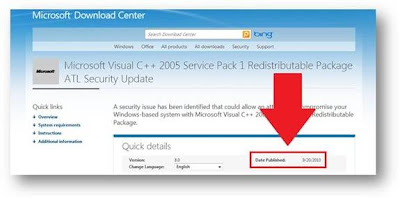
Please download and install the “Microsoft Visual C++ 2005 Service Pack 1 Redistributable Package” for Windows 2000, Windows 7, Windows Server 2003, Windows Server 2008, Windows Vista, Windows XP from:
http://www.microsoft.com/download/en/details.aspx?id=14431
Despite "2005" is in the software name, this is not an indicator as to how old the technology/software is - it is a version name. The most recent update that Microsoft made to the 2005 redistributable is listed in the upper half of the page:

After loading the page, download both version for 32-bit and 64-bit, if you are using a 64-bit version of Windows. If you are not using a 64-bit version of Windows download vcredist_x86.exe
If the run time message doesn't appear, this means that the C++ installed successfully and you can try installing Net Nanny again.
If you encounter the same run time error message, please call Microsoft (800-936-5700) and inform them you are installing C++ and give them the dialogue from your error message. (There is no need to tell Microsoft about Net Nanny because the link above is for the installation of C++ by itself, from their own website.)
Thursday, December 06, 2007
NetNanny 5.1 manual uninstall instructions.
Please follow the steps below to remove Net Nanny manually, if you have any questions or concerns while following these instructions please contact support@netnanny.com
1) Go to the Start Menu => Run.
2) Click on “Browse”. This will bring up the Windows Explorer.
3) Double-click on the C drive, then double-click on the Program Files, then double-click on the Net Nanny folder.
4) You should now see NNsvc.exe. Double-click on this file. This will close the Explorer window and take you back to Run.
5) You should now see this:
"C:\Program Files\Net Nanny\NNSvc.exe"
6) Type a space after the last quote mark, then type /unregserver. It should look like this:
"C:\Program Files\Net Nanny\NNSvc.exe" /unregserver
7) Click on “Ok”. This will close the run box.
8) Go to the Start Menu => Run.
9) Type regedit and press “OK”. This will open up the Registry Editor.
Please exercise extreme caution in doing the following steps. ANY CHANGES MADE TO THE REGISTRY ARE PERMANENT AND CANNOT BE REVERSED. Changes can also disable your Windows installation, so please be careful!
10) You should see "My Computer" and 5 drop-down keys, all starting with HKEY_.
11) Click on the + sign next to HKEY_LOCAL_MACHINE. This will drop down another series of keys.
12) Click on the + sign next to SOFTWARE. This will drop down another series of keys.
13) Click on the + sign next to Microsoft. This will drop down another series of keys.
14) Click on the + sign next to Windows. This will drop down another series of keys.
15) Click on the + sign next to CurrentVersion. This will drop down another series of keys.
16) Click on the + sign next to Uninstall. This will drop down another series of keys.
17) You should now see the {51945e07-120d-4e78-a368-c4c8d5042d21} key. Click on it to select it.
18) Make sure you have the correct key. The full key is:
\HKEY_LOCAL_MACHINE\SOFTWARE\Microsoft\Windows\CurrentVersion\Uninstall\{51945e07-120d-4e78-a368-c4c8d5042d21}\
19) Now right-click on the {51945e07-120d-4e78-a368-c4c8d5042d21} key. This will bring up a menu.
20) Select “delete”.
Use the same method as above to remove the rest of the necessary registry keys:
HKEY_LOCAL_MACHINE\SOFTWARE\Microsoft\Windows\CurrentVersion\Run\NNTray
HKEY_LOCAL_MACHINE\SOFTWARE\Microsoft\Windows\CurrentVersion\AppPaths\NNSvc.exe\
HKEY_LOCAL_MACHINE\SOFTWARE\Microsoft\Windows\CurrentVersion\RunServices\NNSvc (this key will only exist if you are using Windows 98 or ME)
21) Once all 3 keys are removed (or 4 keys if you are using Windows 98/ME), close the registry editor by clicking on the X at the top right corner of the screen.
22) Restart the computer.
23) Right-click on the Start menu and go to “explore”. This will bring up the Windows Explorer again.
24) Find and delete:
• C:\Program Files\Net Nanny\ and all its files and subfolders
• C:\WINDOWS\SYSTEM\HookRes.dll
• C:\WINDOWS\SYSTEM\NNComm.dll
The Windows System may be different depending on which Operating System you are using: On Windows NT or 2000 => C:\WINNT\SYSTEM32 On Windows XP => C:\WINDOWS\SYSTEM32
On Windows 98 or ME => C:\WINDOWS\SYSTEM
* If those files won’t delete because “they are in use or busy”, just press ctrl + alt + del, go into the Task Manager and stop all of the NN processes.
25) Restart the computer.
26) Net Nanny should now be gone. If Net Nanny is still showing in the Start menu, you can right-click on it and choose “delete”.
Tuesday, November 13, 2007
What if I have ContentProtect and not NetNanny?
As of February 2007 ContentWatch, Inc. acquired the name NetNanny©
Upon this acquisition ContentWatch, Inc. renamed it's products for home customers to NetNanny.
The NetNanny product still has the same powerful, dynamic filtering and features of ContentProtect, it just has a new name.
The latest version of NetNanny is version 5.6.
To get the latest version of NetNanny installed:
ContentProtect 1.x users
1 - Click Start\Control Panel\Add - Remove Programs, highlight ContentProtect, remove it.
2 - Open MyComputer\Tools\Folder Options\View\Click the circle labeled “show hidden files and folders”. Below the option you have just selected, uncheck the box labeled “hide file extensions”. Click “Ok.”
3 - Click start\search (or Find)\Files and folders, type in CONTENTWATCH, click search (or find). When the search is finished delete the files that appear that have an icon of a Manila folder.
4 - Clearing files from the registry:
ContentProtect 2.x users
1 - Click Start\Control Panel\Add - Remove Programs, highlight ContentProtect, remove it.
2 - Open MyComputer\Tools\Folder Options\View\Click the circle labeled “show hidden files and folders”. Below the option you have just selected, uncheck the box labeled “hide file extensions”. Click “Ok.”
3 - Click start\search (or Find)\Files and folders, type in CONTENTWATCH, click search (or find). When the search is finished delete the files that appear that have an icon of a Manila folder.
4 - Download\install NetNanny 5.6 from http://www.contentwatch.com/downloads.php?id=160
Upon this acquisition ContentWatch, Inc. renamed it's products for home customers to NetNanny.
The NetNanny product still has the same powerful, dynamic filtering and features of ContentProtect, it just has a new name.
The latest version of NetNanny is version 5.6.
To get the latest version of NetNanny installed:
ContentProtect 1.x users
1 - Click Start\Control Panel\Add - Remove Programs, highlight ContentProtect, remove it.
2 - Open MyComputer\Tools\Folder Options\View\Click the circle labeled “show hidden files and folders”. Below the option you have just selected, uncheck the box labeled “hide file extensions”. Click “Ok.”
3 - Click start\search (or Find)\Files and folders, type in CONTENTWATCH, click search (or find). When the search is finished delete the files that appear that have an icon of a Manila folder.
4 - Clearing files from the registry:
- 1- Click 'start' then run and type REGEDIT
2- Click on Registry\Export Registry File (or in WindowsXP click File/Export) make sure it’s saving in Desktop, then make sure the export range is ‘All’, for File Name type in REGBACK, click save.
3- Click the ‘+’ for Hkey_Current_User\software, delete the ContentWatch folder.
4- Go to Hkey_Local_Machine\software and delete the ContentWatch folder.
ContentProtect 2.x users
1 - Click Start\Control Panel\Add - Remove Programs, highlight ContentProtect, remove it.
2 - Open MyComputer\Tools\Folder Options\View\Click the circle labeled “show hidden files and folders”. Below the option you have just selected, uncheck the box labeled “hide file extensions”. Click “Ok.”
3 - Click start\search (or Find)\Files and folders, type in CONTENTWATCH, click search (or find). When the search is finished delete the files that appear that have an icon of a Manila folder.
4 - Download\install NetNanny 5.6 from http://www.contentwatch.com/downloads.php?id=160
Add NetNanny to your security software exception list
After NetNanny is installed, to ensure that NetNanny is not affected by any installed firewall, anti-virus or spyware program or to ensure that these programs aren't affected by NetNanny being installed, please add the following files from NetNanny to your security software's exception list
These files are found in C:\Program Files\ContentWatch\Internet Protection
These files are found in C:\Program Files\ContentWatch\Internet Protection\updater
This file is found in C:\Program Files\ContentWatch\Internet Protection\ContentProtect\Home
These files are found in C:\Program Files\ContentWatch\Internet Protection
- cwadmintools.exe
cwsvc.exe
cwtray.exe
instlsp.exe
proxyconfig.exe
techinfo.exe
These files are found in C:\Program Files\ContentWatch\Internet Protection\updater
- launcher.exe
updater.exe
This file is found in C:\Program Files\ContentWatch\Internet Protection\ContentProtect\Home
- unins000.exe
Wednesday, November 07, 2007
Files that won't delete
Run a Cleanup Wizard, then perform a scan. If files still aren't deleting after the scan is complete it's because ContentCleanup cannot delete files that:
- 1) May be in use.
2) Have "read-only" permission.
3) Have become corrupted. (Must be manually removed)
4) No longer exist
Note: A limited windows user cannot delete other user's files.
Tuesday, November 06, 2007
Make NetNanny Virtually Invisible
You can make Net Nanny invisible to people you want to protect, that might be upset if they knew they were being filtered or monitored by an Internet filter.
1 - Login to the Net Nanny Admin Tools.
2 - Click Tools\Hide Sys Tray Icon. The icon next to the time clock should have disappeared.
3 - Open Filter Settings.
4 - In the upper half, in the middle, beneath "When Blocked," click on the drop down and select Forbidden page.
5 - Close the Admin Tools.
6 - If you haven't done so already, right-click and delete the Net Nanny icon on your desktop.
You have now set Net Nanny up so that no one can see a Net Nanny icon next to the time clock. They cannot see the icon for Net Nanny on the desktop. Best of all, no one will get a message stating that they are being blocked, they will only see that the page isn't loading. People will not have a reason to think they have been blocked or that they are being monitored by an internet filter.
To receive notifications of blocked sites, in the Admin Tools open Notifications. This is where you can set up email alerts to be sent to you, at any email account.
Now that you've removed all the Net Nanny icons, you've also removed the ability to easily access the administration controls for Net Nanny, through the installed software. The easy alternative is to access the remote administration web site - from any computer that has an internet connection - here: http://manage.netnanny.com.
1 - Login to the Net Nanny Admin Tools.
2 - Click Tools\Hide Sys Tray Icon. The icon next to the time clock should have disappeared.
3 - Open Filter Settings.
4 - In the upper half, in the middle, beneath "When Blocked," click on the drop down and select Forbidden page.
5 - Close the Admin Tools.
6 - If you haven't done so already, right-click and delete the Net Nanny icon on your desktop.
You have now set Net Nanny up so that no one can see a Net Nanny icon next to the time clock. They cannot see the icon for Net Nanny on the desktop. Best of all, no one will get a message stating that they are being blocked, they will only see that the page isn't loading. People will not have a reason to think they have been blocked or that they are being monitored by an internet filter.
To receive notifications of blocked sites, in the Admin Tools open Notifications. This is where you can set up email alerts to be sent to you, at any email account.
Now that you've removed all the Net Nanny icons, you've also removed the ability to easily access the administration controls for Net Nanny, through the installed software. The easy alternative is to access the remote administration web site - from any computer that has an internet connection - here: http://manage.netnanny.com.
Friday, March 02, 2007
I'm having problems with Live One Care
We have not tested ContentWatch products for compatiblity issue's with Live One Care.
Even though we have had a handful of Live One Care user's calling about problems with One Care after installing NetNanny, we have no conclusive evidence that NetNanny is the cause of problems with One Care.
You can have NetNanny "ignore" One Care:
Even though we have had a handful of Live One Care user's calling about problems with One Care after installing NetNanny, we have no conclusive evidence that NetNanny is the cause of problems with One Care.
You can have NetNanny "ignore" One Care:
- Open MyComputer/Tools/Folder Options/View/Click the circle labeled “show hidden files and folders”. Below the option you have just selected, un-check the box labeled “hide file extensions”. Click “Ok”
Open the NetNanny AdminTools. Open Overrides. Click the Applications tab. Click Browse. Browse to the main directory for Live One Care, and add all listed .exe's, and all .exe's in all the subdirectories.
Reboot the computer.
Tuesday, December 12, 2006
Where is my registration number?
**These directions are assuming you have Net Nanny installed on your computer. If you do not have it installed please refer to the e-mail receipt you received at the time of purchase.**
First you need to ensure that the sys tray icons are not hidden:
1 - Right-click your START button.
2 - Left-click Properties
3 -
1 - After the computer is rebooted look in the lower right-hand corner of your monitor for the time. To the left of the time should be a group of small icons.
2 - Look for .
.
3 - Right-click this icon, left-click About. In here is your registration number.
First you need to ensure that the sys tray icons are not hidden:
1 - Right-click your START button.
2 - Left-click Properties
3 -
- WINDOWS XP - Click on Task Bar tab. At the bottom uncheck Hide Inactive Icons. Click Ok. Reboot the computer.
WINDOWS VISTA - Click the Notifications Area tab. Uncheck Hide Inactive Icons. Click Ok. Reboot the computer.
WINDOWS 7 - Click on the Task Bar tab. Down the right-hand side select the Customize button. In the new window, just above the Ok button select "always show all icons..." then Click Ok. Click Ok. Reboot the computer.
1 - After the computer is rebooted look in the lower right-hand corner of your monitor for the time. To the left of the time should be a group of small icons.
2 - Look for
.3 - Right-click this icon, left-click About. In here is your registration number.
Tuesday, December 05, 2006
Sites are getting through that shouldn't!
Because technology is incapable of making a moral decision on an image or a video, Net Nanny filters out websites according to the written words on a page.
Net Nanny is a contextual word filter. For example, "breast" in a pornographic context will cause our filter to block the page. "Breast" used in a cooking context (chicken breast) will not cause our software to block the page.
Therefore, if a page has only images or videos with no text, or nothing of a pornographic or otherwise questionable context written on the page, Net Nanny doesn't have a reason to block the page.
To help us improve our filter, please report any site that gets through the filter that shouldn't to this website: http://www.contentwatch.com/support/accuracy
BLOCK SITES, BASED ON KEY WORDS
You can add any keyword(s) you'd like, to ensure that any web site is blocked that has key words you add to Net Nanny.
***Please be aware that adding keywords will cause Net Nanny to over block.*** e.g. Adding "sex" will cause all web sites to get blocked that have "sex" written on the page, including sites that have an employment context: 'we do not discriminate based on sex.'
Simply open the Net Nanny Admin Tools. Highlight the Profile you want to ensure cannot find sites with the key words you want to block them from, then open Filtering.
In the middle click "Manage Keywords." Enter any objectionable words or phrases to further protect this specific profile from web sites that contain these key words and phrases. To add multiple phrases, simply add each phrase on a separate line. Each line is a separate phrase.
BLOCK SPECIFIC SITES
If you wish to always allow or always block a web site, do the following
1. Copy the web address (e.g. www.msn.com) for the page that you want blocked or allowed on a permanent basis.
2. Open the Net Nanny Admin Tools. (Right-click the Net Nanny icon - next to the time of day - left-click Admin Tools.)
3. Open Exceptions.
4. Click Add. Type or paste the web address in the empty field at the top of the list and press Enter.
5. To the right of the web address you've just entered is the Action column. The defaulted selection is "Block." To allow a site, simply click on the dropdown to the right of "Block" and in the list - 2nd from the top - left-click once on Allow.
6. Click "Ok."
7. Close the Net Nanny Admin Tools.
Net Nanny is a contextual word filter. For example, "breast" in a pornographic context will cause our filter to block the page. "Breast" used in a cooking context (chicken breast) will not cause our software to block the page.
Therefore, if a page has only images or videos with no text, or nothing of a pornographic or otherwise questionable context written on the page, Net Nanny doesn't have a reason to block the page.
To help us improve our filter, please report any site that gets through the filter that shouldn't to this website: http://www.contentwatch.com/support/accuracy
BLOCK SITES, BASED ON KEY WORDS
You can add any keyword(s) you'd like, to ensure that any web site is blocked that has key words you add to Net Nanny.
***Please be aware that adding keywords will cause Net Nanny to over block.*** e.g. Adding "sex" will cause all web sites to get blocked that have "sex" written on the page, including sites that have an employment context: 'we do not discriminate based on sex.'
Simply open the Net Nanny Admin Tools. Highlight the Profile you want to ensure cannot find sites with the key words you want to block them from, then open Filtering.
In the middle click "Manage Keywords." Enter any objectionable words or phrases to further protect this specific profile from web sites that contain these key words and phrases. To add multiple phrases, simply add each phrase on a separate line. Each line is a separate phrase.
BLOCK SPECIFIC SITES
If you wish to always allow or always block a web site, do the following
1. Copy the web address (e.g. www.msn.com) for the page that you want blocked or allowed on a permanent basis.
2. Open the Net Nanny Admin Tools. (Right-click the Net Nanny icon - next to the time of day - left-click Admin Tools.)
3. Open Exceptions.
4. Click Add. Type or paste the web address in the empty field at the top of the list and press Enter.
5. To the right of the web address you've just entered is the Action column. The defaulted selection is "Block." To allow a site, simply click on the dropdown to the right of "Block" and in the list - 2nd from the top - left-click once on Allow.
6. Click "Ok."
7. Close the Net Nanny Admin Tools.
How do I recover deleted files once they have been deleted with ContentCleanup?
Please review all files before choosing to delete them.
ContentCleanup has a preview feature to prevent accidental deletion, however if files are deleted there is not a recovery method in ContentCleanup to recover those files.
ContentCleanup has a preview feature to prevent accidental deletion, however if files are deleted there is not a recovery method in ContentCleanup to recover those files.
Thursday, October 26, 2006
I can't find my new ContentCleanup!
You can find the new ContentCleanup by clicking on Start\All Programs (or Programs)\ContentWatch\ContentCleanup\ContentCleanup (This option will have a small icon next to it that looks like a bar of soap.)
After it opens it will validate the license. When the license has been validated you can run a new scan.
If you cannot find ContentCleanup in your Start menu this means it has not been downloaded to your computer yet. To Download and install ContentCleanup go to www.netnanny.com, log into MyAccount with your e-mail address and password.
The next page that comes up should have a listing of any products, with a "Download" option, beneath your registration number. Click on the "Download" button for the product you want to download/install.
After it opens it will validate the license. When the license has been validated you can run a new scan.
If you cannot find ContentCleanup in your Start menu this means it has not been downloaded to your computer yet. To Download and install ContentCleanup go to www.netnanny.com, log into MyAccount with your e-mail address and password.
The next page that comes up should have a listing of any products, with a "Download" option, beneath your registration number. Click on the "Download" button for the product you want to download/install.
- NOTE:
-If you are using a highspeed internet connection, click the "Download" button, then click "Run" to begin the installation.
-If you are using a dial-up internet connection, click the "Download" button, in the next prompt click "Save"; save your download to your desktop. This will help you avoid long downloads in the future.
Before installing if you have a software firewall running make sure you disable your firewall, (you can turn the firewall on again after the install is finished.) This also applies to any spyware monitoring software.
If you do not know how to disable the firewall or spyware monitoring software please contact your IT department or the technical support for the firewall that is on your computer. If you do not know if you have a firewall on your computer please contact your computer manufacturer to find out.
Wednesday, October 25, 2006
"Setup files Are Corrrupt" Message Appears When I Try to Install NetNanny
Open Internet Explorer\Tools\Internet Options\Content tab. In the top section "ContentAdvisor" please disable ContentAdvisor. Click "Ok" and reboot the computer. Once the computer is rebooted re-download and re-install.
Note: If ContentAdvisor prompts for a password and you do not know the password please contact Microsoft tech support 1-800-936-5700.
If ContentAdvisor is already disabled please delete the file you downloaded and download the file again. If the same message appears after you have just downloaded a new copy of the installation file this means something on the computer is corrupting the download.
Delete the file you have just downloaded and download the same file from an alternative location, not on the ContentWatch, Inc. servers.
You can download from the options on the right-hand side of this page, in the section "Downloads for Home Products."
Note: If ContentAdvisor prompts for a password and you do not know the password please contact Microsoft tech support 1-800-936-5700.
If ContentAdvisor is already disabled please delete the file you downloaded and download the file again. If the same message appears after you have just downloaded a new copy of the installation file this means something on the computer is corrupting the download.
Delete the file you have just downloaded and download the same file from an alternative location, not on the ContentWatch, Inc. servers.
You can download from the options on the right-hand side of this page, in the section "Downloads for Home Products."
Countdown Clock After Installing or No Start Button After Installing
After installing NetNanny, and your computer reboots without a Start button, or if you are encountering a countdown clock that shuts your computer down, please call our tech support 1-800-485-4008, 8am-5pm, Mon-Fri Mountain Time (USA.)
Subscribe to:
Posts (Atom)